How can we help?
How can we help?
Getting Started
What is CallBridge?
Callbridge is a speech-to-text and text-to-speech app designed for d/Deaf and non-speaking individuals to make and receive phone calls. You can use it to contact government services, institutions, hotlines, businesses or even friends and family. Anywhere a phone call is needed!
Setting up
Download the CallBridge app from the App Store or Google Play.
Create an account using your phone number.
Verify your phone number with the SMS verification code.


Receiving inbound calls
Set up call forwarding on your phone and start receiving phone calls.
Go to your phone's Settings app and search "call forwarding"
Enable call forwarding.
Forward your calls to CallBridge's number: 3123 7309 or (+65)3123 7309
Ensure that your notifications are on, and do-not-disturb is disabled.
Features
& Usage
Customise your messages in Settings
Introduction Message
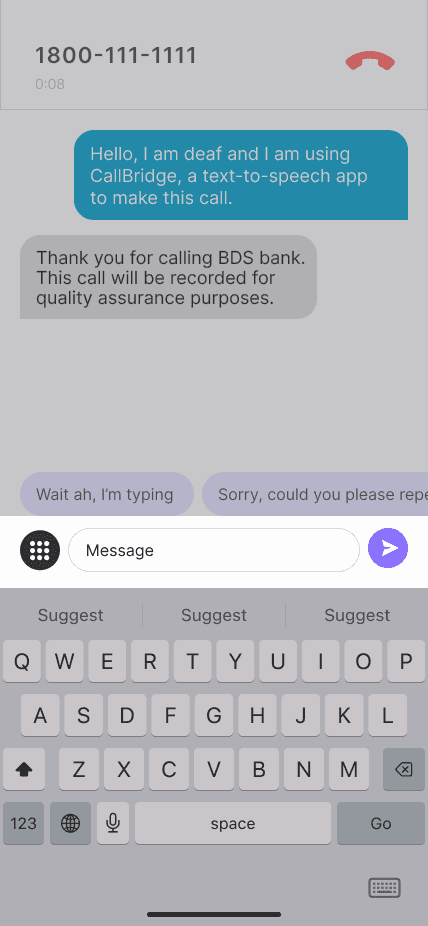
This message is played automatically at the start of every call. It lets the other person know that you're using CallBridge's text-to-speech technology to communicate during the call.
Quick Replies
Preset frequently used responses before your calls for faster, smoother conversations. Reduce waiting time while typing and keep the conversation flowing naturally.


Switching to number pad
When you call automated hotlines (e.g. “Press 1 for English”), switch to the number pad to communicate.
Tap on the number pad icon above the keyboard.
Input the relevant number and remember press send.
Switch back to the keyboard once a caller agent answers.
Postal code/phone number
6 digits → read as postal code (e.g. 560123 → “five six zero one two three”)
8 digits starting with 8 or 9 → read as phone number (e.g. 91234567 → “nine one two three four five six seven”)
How to identify if a call is directed to an automated call centre?
The call starts with a recorded message:
“Thank you for calling…”
“Please listen carefully as our options have changed…”
“Your call may be recorded for quality purposes…”
Long pauses in between messages.
Repeats the same message if you do not respond.
Smart typing
CallBridge reduces call drop-offs by playing typing sound effects that reassure callers you're responding, and mapping frequently used acronyms to reduce typing effort. When you type an acronym, it will be spoken as the actual word.
Examples:
IDK → I don’t know
ASAP → as soon as possible
BTW → by the way
NP → no problem
TY → thank you
TBH → to be honest


Call Transcripts
Every incoming and outgoing call is automatically transcribed. To view a transcript, open Call History and tap the Info icon next to the call you want to view.
Troubleshoot
Why can't I make calls?
Check that you have a stable internet connection (Wi-Fi or mobile data).
Make sure CallBridge has permission to access your microphone.
Restart the app and try again.
If the issue persists, contact us at hello@callbridge.sg
Why am i not receiving calls?
Check that call forwarding is set up correctly to 3123 7309 or +65 3123 7309.
Test the setup by calling your own phone number through CallBridge.
If your phone does not ring, disable call forwarding and set it up again in your device settings.
App Limitations
Not all telcos supports CallBridge
Currently, Giga and Prepaid Cards do not support call forwarding, which means you won't be able to receive inbound calls. We are working with different telcos to provide cheaper plans that you can swap to.
Outbound Caller ID
Outgoing calls are made using CallBridge's shared number (+65 6046 0407) for privacy and compliance with IMDA regulations. The person you're calling will not see your personal phone number.
If you'd like them to call back, please include your number in your message.
Calling emergency hotlines
With the support of SCDF, you can use CallBridge to call 995. Calls to 999 are not yet supported. We're actively working with IMDA and SPF to enable 999 compatibility in a future update.
Safety & Scam
Scam calls are designed to make you feel urgent, scared, or rushed so you act without thinking. Remember: you are always allowed to pause, verify, or hang up.
Be cautious if the caller:
Pressures you to act immediately or threatens consequences.
Asks for sensitive information such as your bank details, passwords, or OTPs. Legitimate organisations will never ask for your password or OTP over a call.
Requests unusual payments, such as transfers to a "safe account," gift cards, cryptocurrency, or QR code payments.
Refuses verification, discourages you from calling back through official channels, or becomes aggressive when questioned.
If you think it's a scam, hang up immediately. If you're unsure, call the ScamShield Helpline at 1799.
Getting Started
What is CallBridge?
Callbridge is a speech-to-text and text-to-speech app designed for d/Deaf and non-speaking individuals to make and receive phone calls. You can use it to contact government services, institutions, hotlines, businesses or even friends and family. Anywhere a phone call is needed!
Setting up
Download the CallBridge app from the App Store or Google Play.
Create an account using your phone number.
Verify your phone number with the SMS verification code.
Receiving inbound calls
Set up call forwarding on your phone and start receiving phone calls.
Go to your phone's Settings app and search "call forwarding"
Enable call forwarding.
Forward your calls to CallBridge's number: 3123 7309 or (+65)3123 7309
Ensure that your notifications are on, and do-not-disturb is disabled.
Features
& Usage
Customise your messages in Settings
Introduction Message
This message is played automatically at the start of every call. It lets the other person know that you're using CallBridge's text-to-speech technology to communicate during the call.
Quick Replies
Preset frequently used responses before your calls for faster, smoother conversations. Reduce waiting time while typing and keep the conversation flowing naturally.
Switching to number pad
When you call automated hotlines (e.g. “Press 1 for English”), switch to the number pad to communicate.
Tap on the number pad icon above the keyboard.
Input the relevant number and remember press send.
Switch back to the keyboard once a caller agent answers.
How to identify if a call is directed to an automated call centre?
The call starts with a recorded message:
“Thank you for calling…”
“Please listen carefully as our options have changed…”
“Your call may be recorded for quality purposes…”
Long pauses in between messages.
Repeats the same message if you do not respond.
Smart typing
CallBridge reduces call drop-offs by playing typing sound effects that reassure callers you're responding, and mapping frequently used acronyms to reduce typing effort. When you type an acronym, it will be spoken as the actual word.
Examples:
IDK → I don’t know
ASAP → as soon as possible
BTW → by the way
NP → no problem
TY → thank you
TBH → to be honest
Postal code/Phone number
6 digits → read as postal code (e.g. 560123 → “five six zero one two three”)
8 digits starting with 8 or 9 → read as phone number (e.g. 91234567 → “nine one two three four five six seven”)
Call Transcripts
Every incoming and outgoing call is automatically transcribed. To view a transcript, open Call History and tap the Info icon next to the call you want to view.
Troubleshoot
Why can't I make calls?
Check that you have a stable internet connection (Wi-Fi or mobile data).
Make sure CallBridge has permission to access your microphone.
Restart the app and try again.
If the issue persists, contact us at hello@callbridge.sg
Why am I not receiving calls?
Check that call forwarding is set up correctly to 3123 7309 or +65 3123 7309.
Test the setup by calling your own phone number through CallBridge.
If your phone does not ring, disable call forwarding and set it up again in your device settings.
App Limitations
Not all telcos supports CallBridge
Currently, Giga and Prepaid Cards do not support call forwarding, which means you won't be able to receive inbound calls. We are working with different telcos to provide cheaper plans that you can swap to.
Outbound Caller ID
Outgoing calls are made using CallBridge's shared number (+65 6046 0407) for privacy and compliance with IMDA regulations. The person you're calling will not see your personal phone number.
If you'd like them to call back, please include your number in your message.
Calling emergency hotlines
With the support of SCDF, you can use CallBridge to call 995. Calls to 999 are not yet supported. We're actively working with IMDA and SPF to enable 999 compatibility in a future update.
Safety & Scam
Scam calls are designed to make you feel urgent, scared, or rushed so you act without thinking. Remember: you are always allowed to pause, verify, or hang up.
Be cautious if the caller:
Pressures you to act immediately or threatens consequences.
Asks for sensitive information such as your bank details, passwords, or OTPs. Legitimate organisations will never ask for your password or OTP over a call.
Requests unusual payments, such as transfers to a "safe account," gift cards, cryptocurrency, or QR code payments.
Refuses verification, discourages you from calling back through official channels, or becomes aggressive when questioned.
If you think it's a scam, hang up immediately. If you're unsure, call the ScamShield Helpline at 1799.
How can we help?
Getting Started
What is CallBridge?
Callbridge is a speech-to-text and text-to-speech app designed for d/Deaf and non-speaking individuals to make and receive phone calls. You can use it to contact government services, institutions, hotlines, businesses or even friends and family. Anywhere a phone call is needed!
Setting up
Download the CallBridge app from the App Store or Google Play.
Create an account using your phone number.
Verify your phone number with the SMS verification code.
Receiving inbound calls
Set up call forwarding on your phone and start receiving phone calls.
Go to your phone's Settings app and search "call forwarding"
Enable call forwarding.
Forward your calls to CallBridge's number: 3123 7309 or (+65)3123 7309
Ensure that your notifications are on, and do-not-disturb is disabled.
Features & Usage
Customise your messages in Settings
Introduction Message
This message is played automatically at the start of every call. It lets the other person know that you're using CallBridge's text-to-speech technology to communicate during the call.
Quick Replies
Preset frequently used responses before your calls for faster, smoother conversations. Reduce waiting time while typing and keep the conversation flowing naturally.
Switching to number pad
When you call automated hotlines (e.g. “Press 1 for English”), switch to the number pad to communicate.
Tap on the number pad icon above the keyboard.
Input the relevant number and remember press send.
Switch back to the keyboard once a caller agent answers.
Postal code/phone number
6 digits → read as postal code (e.g. 560123 → “five six zero one two three”)
8 digits starting with 8 or 9 → read as phone number (e.g. 91234567 → “nine one two three four five six seven”)
How to identify if a call is directed to an automated call centre?
The call starts with a recorded message:
“Thank you for calling…”
“Please listen carefully as our options have changed…”
“Your call may be recorded for quality purposes…”
Long pauses in between messages.
Repeats the same message if you do not respond.
Smart typing
CallBridge reduces call drop-offs by playing typing sound effects that reassure callers you're responding, and mapping frequently used acronyms to reduce typing effort. When you type an acronym, it will be spoken as the actual word.
Examples:
IDK → I don’t know
ASAP → as soon as possible
BTW → by the way
NP → no problem
TY → thank you
TBH → to be honest
Call Transcripts
Every incoming and outgoing call is automatically transcribed. To view a transcript, open Call History and tap the Info icon next to the call you want to view.
Troubleshoot
Why can't I make calls?
Check that you have a stable internet connection (Wi-Fi or mobile data).
Make sure CallBridge has permission to access your microphone.
Restart the app and try again.
If the issue persists, contact us at hello@callbridge.sg
Why am i not receiving calls?
Check that call forwarding is set up correctly to 3123 7309 or +65 3123 7309.
Test the setup by calling your own phone number through CallBridge.
If your phone does not ring, disable call forwarding and set it up again in your device settings.
App Limitations
Not all telcos supports CallBridge
Currently, Giga and Prepaid Cards do not support call forwarding, which means you won't be able to receive inbound calls. We are working with different telcos to provide cheaper plans that you can swap to.
Outbound Caller ID
Outgoing calls are made using CallBridge's shared number (+65 6046 0407) for privacy and compliance with IMDA regulations. The person you're calling will not see your personal phone number.
If you'd like them to call back, please include your number in your message.
Calling emergency hotlines
With the support of SCDF, you can use CallBridge to call 995. Calls to 999 are not yet supported. We're actively working with IMDA and SPF to enable 999 compatibility in a future update.
Safety & Scam
Scam calls are designed to make you feel urgent, scared, or rushed so you act without thinking. Remember: you are always allowed to pause, verify, or hang up.
Be cautious if the caller:
Pressures you to act immediately or threatens consequences.
Asks for sensitive information such as your bank details, passwords, or OTPs. Legitimate organisations will never ask for your password or OTP over a call.
Requests unusual payments, such as transfers to a "safe account," gift cards, cryptocurrency, or QR code payments.
Refuses verification, discourages you from calling back through official channels, or becomes aggressive when questioned.
If you think it's a scam, hang up immediately. If you're unsure, call the ScamShield Helpline at 1799.